
For your website’s visitors, every second counts.
A slow WordPress site can frustrate your visitors and push them directly to your competitors.
No matter how polished your design or how valuable your content, a sluggish load time will undo it all before users even get the chance to engage with your content and services.
Here’s what you need to know to make your WordPress site faster, sharpen your search engine rankings, and keep visitors coming back.
Image Source: Magnific
How Do I Improve My WordPress Website Speed?
How fast is your WordPress website? Find out with PageSpeed Insights.
If your Largest Contentful Paint (LCP) load time is longer than 2.5 seconds, your site has room to improve. Anything beyond that threshold starts costing you visitors and search rankings.
Check out our tips for improving page loading speeds on mobiles and desktops:
1. Keep Your WordPress Site Updated
Make sure your website is always updated to the latest version, since WordPress regularly conducts maintenance and server updates to fix bugs and improve site performance.
Core updates on WordPress are automatically enabled. But outdated themes and plugins can slow your site, as they may not be compatible with the latest WordPress version.
Outdated versions can conflict with the latest WordPress release and quietly drag down your site’s performance. Always choose plugins that are actively maintained and updated (it’s one of the simplest ways to protect your site’s speed)
On the WordPress Plugins Directory, you can see when each plugin was last updated and which WordPress version it’s compatible with.
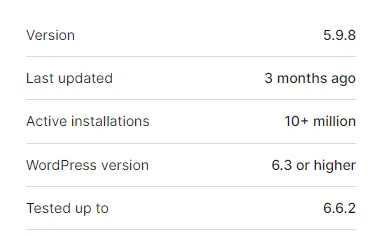
Image Source: WordPress
2. Delete Unused Plugins and Themes
WordPress has thousands of plugins for almost everything – SEO, security, page building, and performance, just to name a few.
But, as much as we love installing plugins or using themes to help our website stand out, doing so can tank your site’s speed.
Of course, removing all your plugins isn’t necessary. You can, however, go through all your installed plugins and delete any that are unused or outdated. These can create unnecessary clutter and do more harm than good to your website’s performance.
You can also remove some of your plugins and replace them with ones that offer multiple functionalities or are more efficient. For example, if you’re using separate plugins for analytics and tracking, consider finding a single plugin that combines both functionalities.
Taking this step can simplify your plugin management and reduce your server’s load to improve your site’s overall performance.
3. Optimize Images
Images are the ideal way to keep your visitors engaged and communicate your brand’s message.
But, too many images come at a cost regarding your website’s speed, especially if they haven’t been optimized.
Unoptimized images often have very large file sizes due to their lack of compression. These images will be very high-resolution, which, of course, is a good thing, but it also means they significantly slow down page load times.
Fortunately, there are ways to optimize images without losing much or any quality, such as:
- Change formats: Change JPG images to WebP, as this format offers small file sizes while maintaining the same level of quality.
- Resize images: Adjust the dimensions of your images to match their display size on your website by either resizing or cropping them. Large images that are scaled down in HTML can waste bandwidth and slow down loading times.
- Compress images: Utilize image compression tools such as TinyPNG or plugins like reSmush.it to reduce the file sizes of your site’s images without noticeable quality loss.
 Image Source: TinyPNG
4. Implement Lazy Loading
Implement lazy loading for non-critical elements, such as images, so they load only when they come into view.
This is in contrast to everything loading at once, known as eager loading, which contributes to longer server response times and slower page load times.
For example, you may have an image towards the end of one of your landing pages. Users may not get to this image for a while, so rather than loading alongside elements at the top of the page, it only loads when a user scrolls down to it.
Lazy loading is used across many popular websites.
For example, if you visit YouTube, you’ll notice that the site will load the main video you clicked on before loading any comments, suggested videos, or other content. Before these elements load, grey placeholder boxes take their place.
Implement lazy loading in your site either through a plugin or by opening your WordPress theme’s functions.php file and adding the loading=”lazy” attribute to your images.
5. Limit Post Revisions
After publishing any post on WordPress, you can go back and make revisions to it. Maybe you noticed some spelling mistakes, wanted to add some extra points, or forgot to include enough internal or external links.
Whenever you revise any post, WordPress automatically copies and stores the revision in your database rather than deleting the previous version. WordPress does this to allow users to recover and revert to any previous versions of their posts if needed.
Although this is a thoughtful feature, it can negatively impact your website’s speed by overloading your database. We recommend avoiding this by limiting revisions to your published posts to no more than 4 per post.
You can restrict revisions by adding the following code snippet to your wp-config.php file –
define( ‘WP_POST_REVISIONS’, 4 );
If you want more or fewer than four revisions, simply change the last number in the code snippet. Or, if you don’t feel comfortable editing code, you can install a plugin to manage post revisions, such as WP-Optimize.
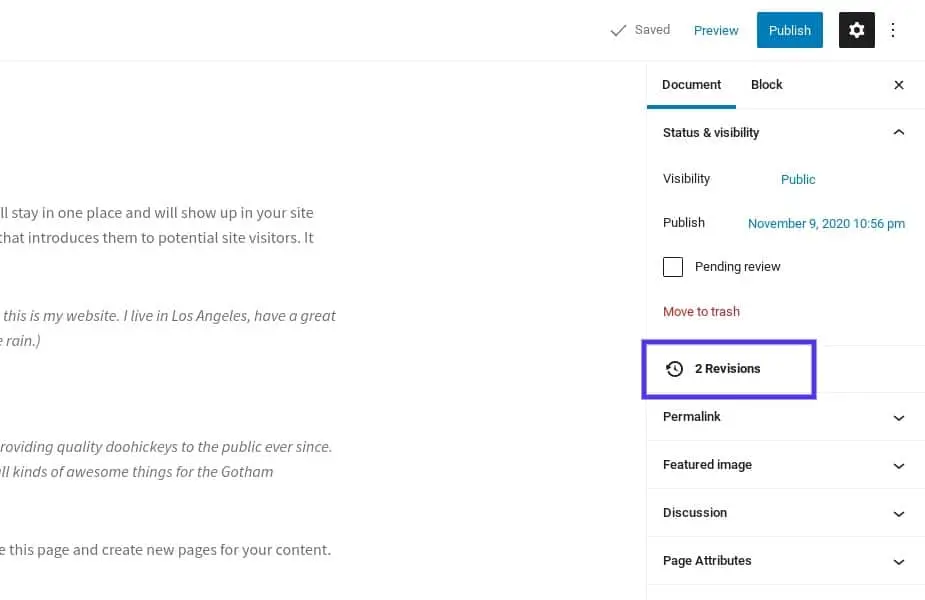
Image Source: WordPress
6. Split Long Posts Into Several Pages
Typically, longer posts are better for a site’s SEO, as more words can provide visitors with extra substance, which Google prioritizes in its ranking processes.
The only downside is that longer posts often take longer to load, especially if they include multiple images.
Consider splitting lengthy posts into multiple pages using pagination. Rather than waiting for the entire page to load, users can use the “Next” or “Previous” buttons to navigate between the pages.
By doing so, you can improve your site’s overall navigation and make it easier for crawlers to crawl.
WordPress pagination can be done in several ways.
If you want to break a single post into multiple pages, adjust your theme’s pagination using PHP and CSS or install a pagination plugin such as WP-Pages.
If you want to control how many blog pages to display, you can navigate to your WordPress dashboard. Under Settings > Reading, set the number of posts to show on your site’s Blog page.
7. Limit Hosted Videos on Your Server
Videos on your website require a lot of storage space and bandwidth to stream, which slows your website’s loading time. If you’ve noticed slow speeds on your website, your videos may be the culprit.
Instead of just removing your videos, you can improve your website’s performance using third-party video hosting services like Vimeo and YouTube.
Rather than uploading video files directly to your site’s media library, use these services to host the videos externally. All you need to do is embed the video on your website using a code snippet provided by the hosting service.
There’s no visible difference for the visitor, but behind the scenes, the video is streamed from an external platform.
8. Use a Content Delivery Network
A Content Delivery Network (CDN) is a crucial resource for optimizing the speed and performance of your WordPress website. A CDN is a network of servers strategically distributed across various geographical locations.
When a user accesses your website, the CDN serves the content from the nearest server, reducing the distance that data must travel.
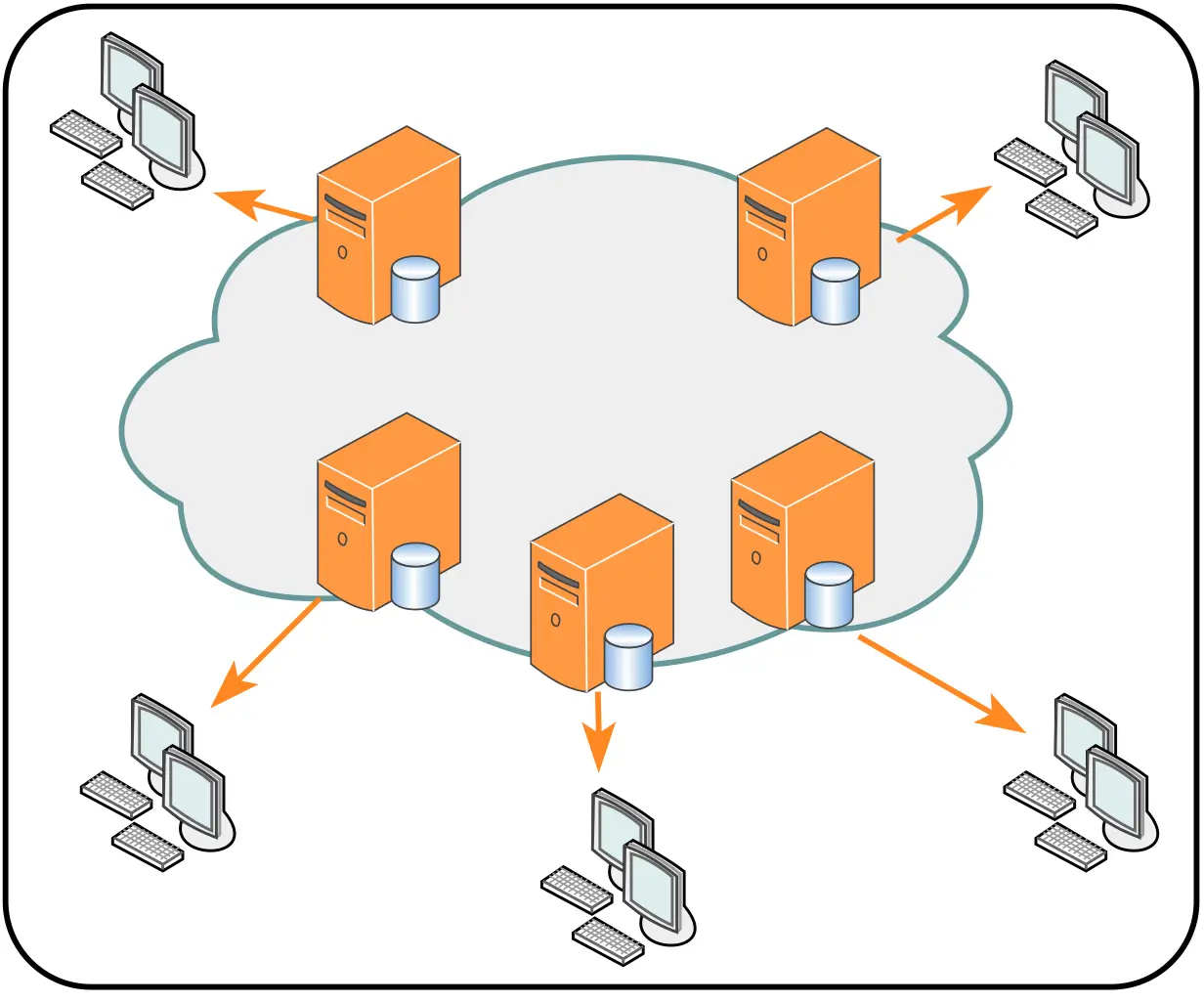 Image Source: Wikipedia
Without a CDN, every request to view content on your site has to be processed directly by your web server. This can lead to slower page loading times, especially during high-traffic periods.
As more visitors access your site, the demand on your server increases, which can overwhelm it and cause delays in delivering content. Consequently, users may experience longer wait times, leading to higher bounce rates.
Implementing a CDN alleviates the strain on your primary server and improves your site’s overall speed. CDNs can cache static content, such as images, CSS files, and JavaScript, so they are delivered quickly and efficiently.
9. Disable Hotlinking
Hotlinking occurs when a file, such as an image, audio file, video, or other digital asset, is linked directly from another website rather than downloaded and hosted on your own server.
While it may seem convenient, this practice is considered poor etiquette because it uses the original website’s bandwidth to load content on your site without providing any compensation.
If your website falls victim to hotlinking, it can increase bandwidth usage on your server, especially if the hotlinked content is popular and receives heavy traffic. Your server may struggle to deliver content to your visitors, slowing down your site.
To avoid this, you’ll need to disable hotlinking and protect your website. You can do so by utilizing a CDN with hotlink protection, such as Cloudflare.
You can also disable the right-click functionality. This deters users from accessing the context menu, which allows them to copy image URLs or hotlink directly to your assets.
Although this method isn’t foolproof, it can still help reduce casual hotlinking attempts and somewhat protect your site from slower page load times.
10. Consider Changing Hosting Provider
When a user types your website’s domain name into their browser, it connects to the server hosting your site. This server stores your website’s content, including text, images, code, and videos. The server’s unique IP address allows browsers to locate it, enabling users to access and view your site.
Using a web hosting service is like renting space on this server.
When someone visits your website by typing the domain name or clicking a link, their device communicates with the server. The server then sends the necessary files to display the webpage on the visitor’s device.
There are plenty of web hosting services to choose from, with some being more secure, faster, or cheaper than others. When deciding on a web host, we advise doing plenty of research, as choosing an unsuitable provider can result in slower website speeds.
If you have completed the other suggestions on this list but still haven’t noticed much improvement in your site’s performance, it may be time to switch providers.
 Image Source: WP Engine
You can also consider switching the type of hosting plan for your website.
While shared hosting is the cheapest option, since you’re sharing server space with multiple other sites, you may experience slower performance and limited resources compared to dedicated hosting, which provides an entire server exclusively for your website.
Instead, upgrading to a dedicated hosting plan provides full server resources exclusively for your website, resulting in improved speed and performance.
Put Your WordPress Website in the Fast Lane
From images to plugins and CDNs to hosting providers, when it comes to your website’s speed, there are a lot of considerations.
If you feel like you’re becoming overwhelmed or just want to take some weight off your shoulders when trying to improve your website, you can turn to DEMA Marketing’s website redesign services. These services revamp your entire website to ensure it’s secure, functional, SEO-friendly, and quick, giving your visitors a lightning-fast experience.
Contact our team to find out more or receive a free quote.